24/7 support
Help is available for product, order, setup, return, and exchange questions.
Product Support
CoreDrive product support helps customers choose, set up, use, troubleshoot, return, and exchange in-car technology with less confusion, from dash cameras and receivers to chargers, mounts, scanners, alarms, monitors, and tire tools.
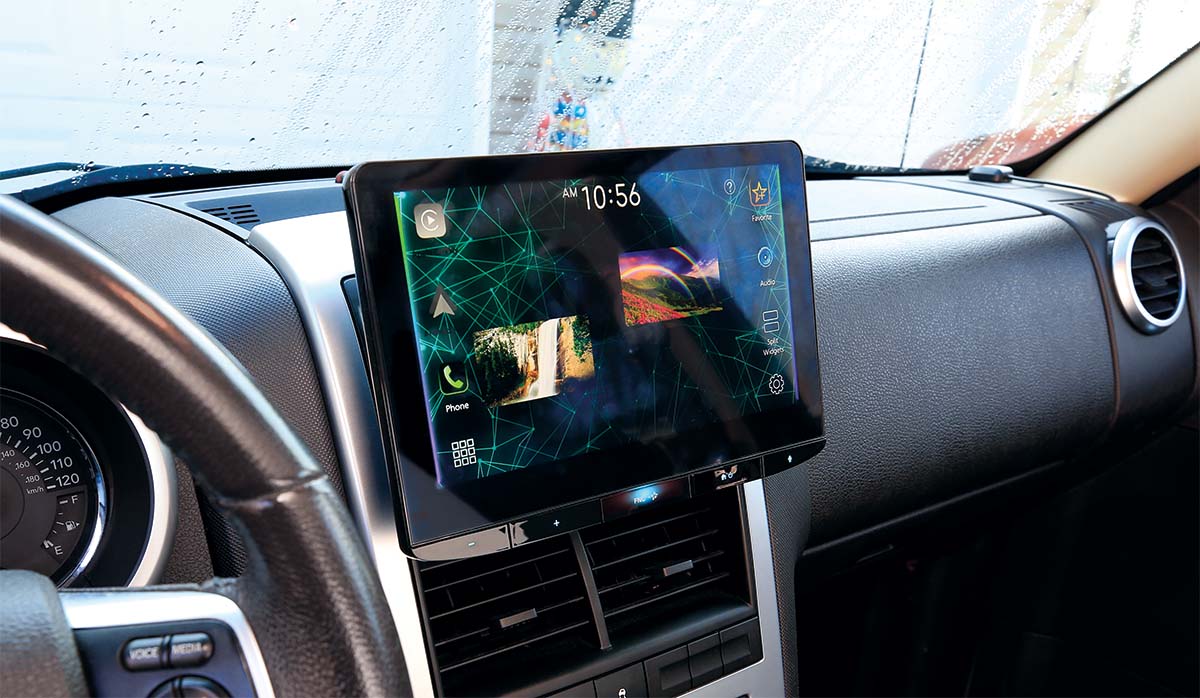
Help is available for product, order, setup, return, and exchange questions.
Every CoreDrive order ships free with delivery in 3–5 calendar days.
Free returns and exchanges are available within 30 days.
Email subscribers get 15% off, and selected products receive 20% off.
Support hub
Product support works best when the question is matched to the device category. CoreDrive organizes help around the way each product is used inside the vehicle: screen, windshield, mirror, console, charging port, audio system, OBD-II port, alarm system, or tire setup.
A dash camera question may involve mounting, power, recording angle, or storage. An infotainment question may involve pairing, audio, touchscreen response, or phone compatibility. A charger question may involve cable type, port condition, or power delivery. A scanner question may involve connection location, app pairing, or vehicle readiness.
CoreDrive support is designed to help customers move from uncertainty to the next practical step without making the product experience feel complicated.
Get help with front dash cameras, mirror dash cameras, backup camera kits, parking sensors, display monitors, and dual or 3-channel dash cameras.
Get support for Apple CarPlay, Android Auto, Bluetooth receivers, USB-C chargers, phone mounts, OBD-II adapters, alarms, and tire tools.
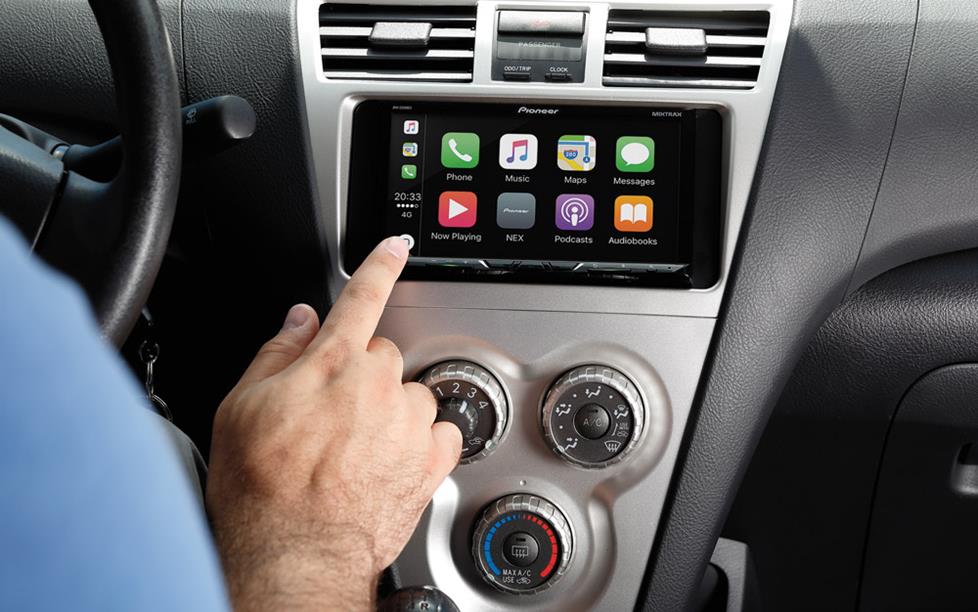
Screen and receiver help
Apple CarPlay and Android Auto receivers, Bluetooth digital media receivers, speakers, subwoofers, and amplifiers often need support around compatibility, pairing, controls, audio output, screen response, and everyday cabin use.
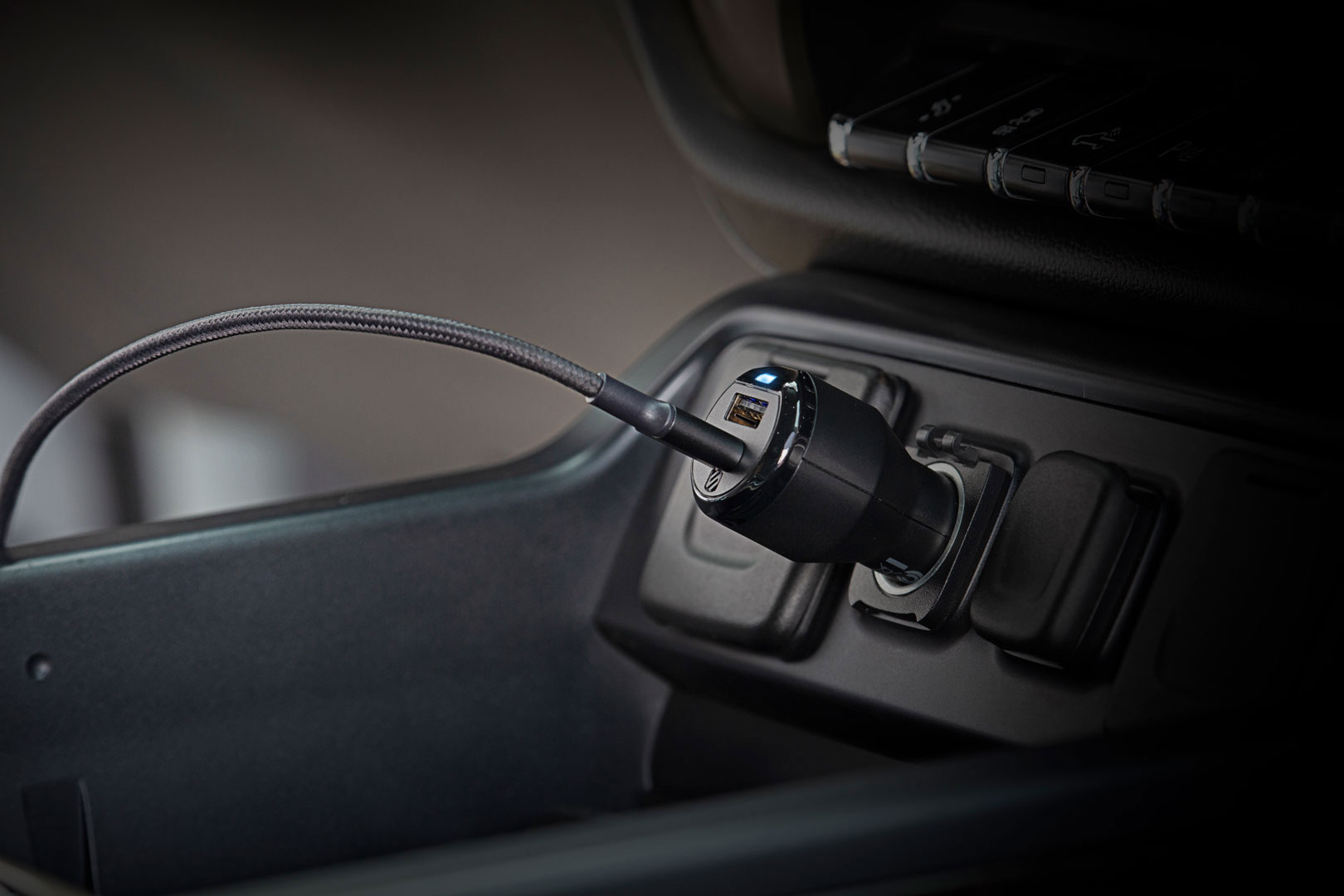
Power support
USB-C car chargers, fast adapters, power inverters, and 12V splitters should be checked by port fit, device demand, cable quality, charger rating, vehicle power outlet condition, and the number of connected devices.
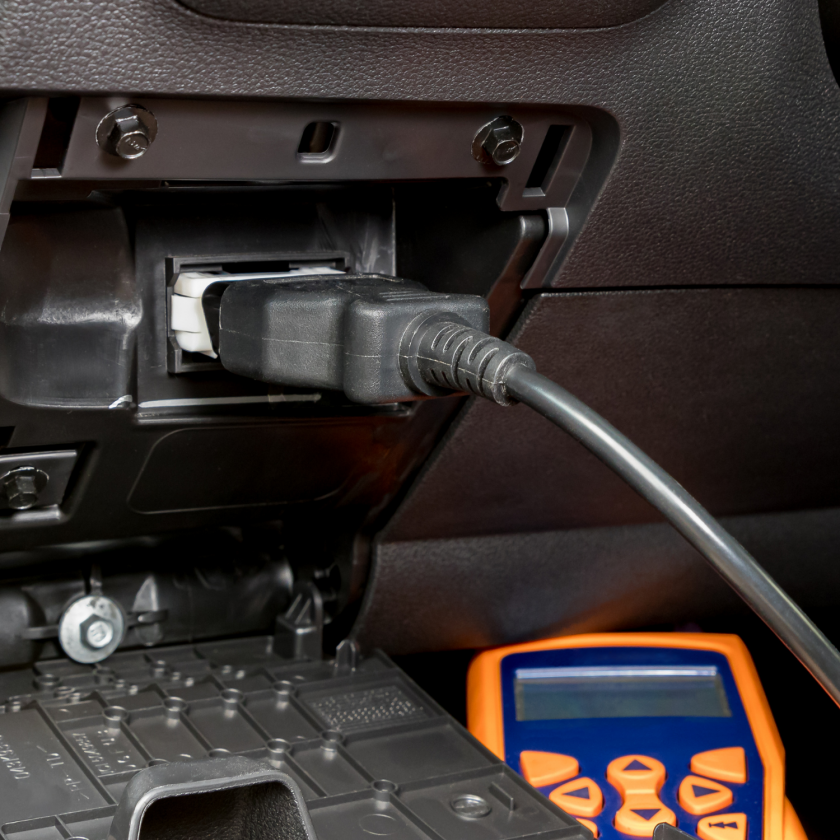
Diagnostic and security help
OBD-II scanners, Bluetooth adapters, remote starters, alarm systems, tire pressure monitors, and digital inflators may require support around setup location, pairing, power, reading behavior, alerts, product condition, or proper use.

Mounting and fit support
Phone mounts, magnetic holders, dash cameras, mirror cameras, and display monitors should be placed where they stay secure, visible, and out of the way of important controls, vents, mirrors, and driver sightlines.
Before contacting support
The most useful support messages include the product name, order email, order number, a clear description of the issue, the device category, and any setup details that explain how the product is being used inside the vehicle.
Prepare your order number, purchase email, shipping name, product name, and delivery status.
Share what the product is doing, what you expected, and what you already tested.
CoreDrive supports free shipping, 3–5 calendar day delivery, and free returns or exchanges within 30 days.